
How to Add a Card to Apple Pay on Your iPhone and Apple Watch - Philippines
The wait is officially over for Filipino iPhone users: Apple Pay has finally arrived in the Philippines, bringing a faster, safer, and completely contactless way to pay using your Apple devices. Supported by major initial bank partners like UnionBank, Metrobank, GoTyme Bank, and Chinabank, setting up Apple Wallet allows you to leave your physical cards at home while enjoying seamless tap-to-pay transactions at thousands of retail stores, restaurants, and online checkouts nationwide. Whether you're tapping your iPhone at a local checkout counter or ordering through supported mobile apps, here is your step-by-step guide on how to set up and start using Apple Pay in the Philippines today.
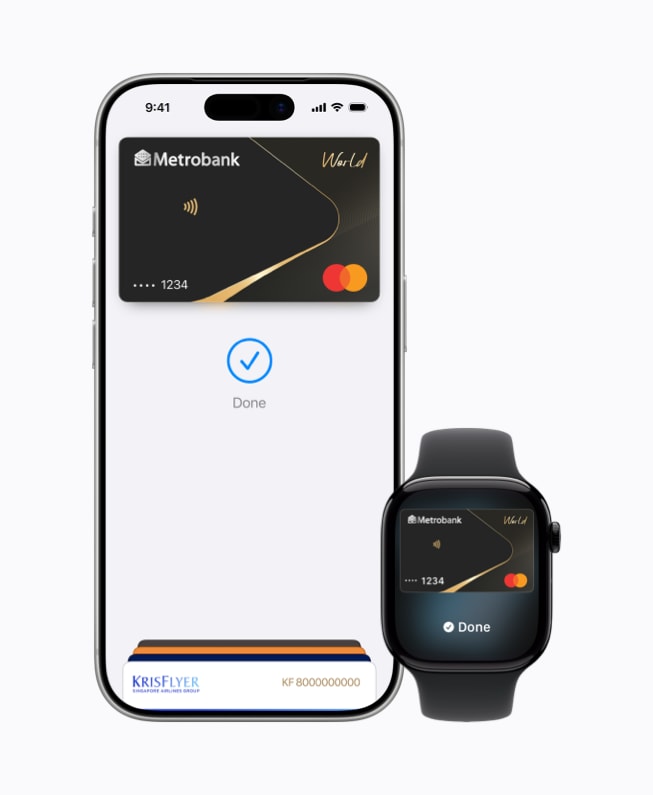
Supported Banks in the Philippines
At launch, Apple Pay supports eligible Visa and Mastercard credit/debit cards from the following Philippine banks:
Chinabank
GoTyme Bank
Metrobank
UnionBank
(More banks and issuers are expected to roll out support over time).
How to Add a Card to Apple Pay on Your iPhone
Open the Wallet App: Open the built-in Wallet app on your iPhone.
Tap the Add (+) Button: Tap the + icon in the top-right corner of the screen.
Select Debit or Credit Card: Choose Debit or Credit Card and tap Continue.
Scan or Enter Card Details: Position your card inside the camera frame to scan it automatically, or select Enter Card Details Manually.
Verify Security Info: Confirm your name, card number, expiration date, and CVV/CVC code.
Accept Terms & Conditions: Review and agree to your bank's terms.
Complete Bank Verification: Select a verification method (usually via SMS OTP or Banking App authorization). Once verified, your card is active and ready to use.
How to Add a Card to Your Apple Watch
Open the Watch app on your iPhone.
Scroll down and tap Wallet & Apple Pay.
Tap Add Card (or select a card already added to your iPhone) and follow the on-screen verification prompts.
Where & How to Use Apple Pay in the PH
In Physical Stores: Look for the Apple Pay or Contactless / NFC symbol (waves icon) at payment terminals (e.g., Jollibee, Ayala Malls, Power Mac Center, Abenson, Shake Shack, WalterMart, etc.).
iPhone with Face ID: Double-click the side button, look at your iPhone, and hold the top of your phone near the payment terminal.
iPhone with Touch ID: Rest your finger on the Home button and hold your phone near the terminal.
In Apps & Websites: Select Apple Pay as your checkout option in supported apps and websites (e.g., Shopee, foodpanda, Jollibee app) and confirm with Face ID, Touch ID, or your passcode.


.jpg)
0 comments
Show some Love, post a comment please? <3 <3 <3